
Tutorials

Learn Henora, one task at a time

Short, step-by-step guides for the things your team does every day. Each one follows the menu names you will see in the system.

Every sale, payment, stock movement and expense lands in one system, so your whole business runs on one record you can trust.

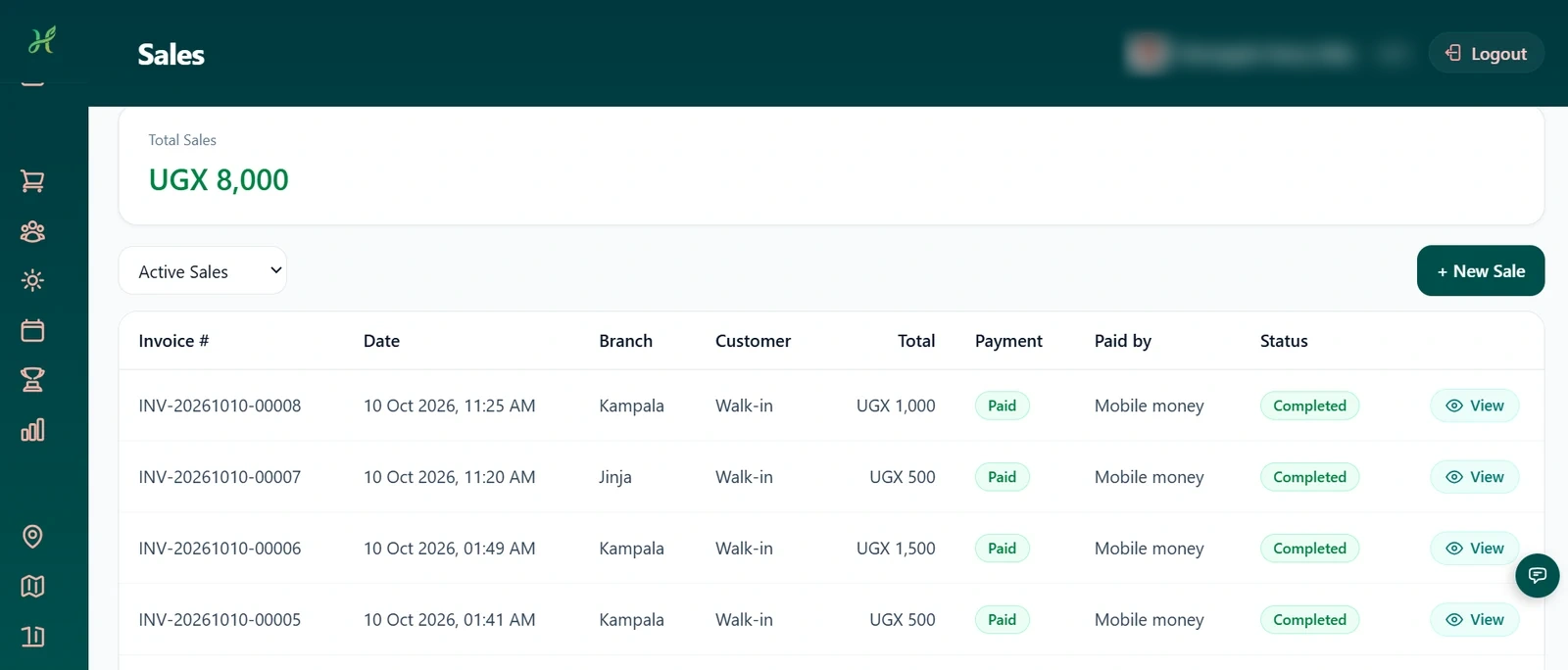
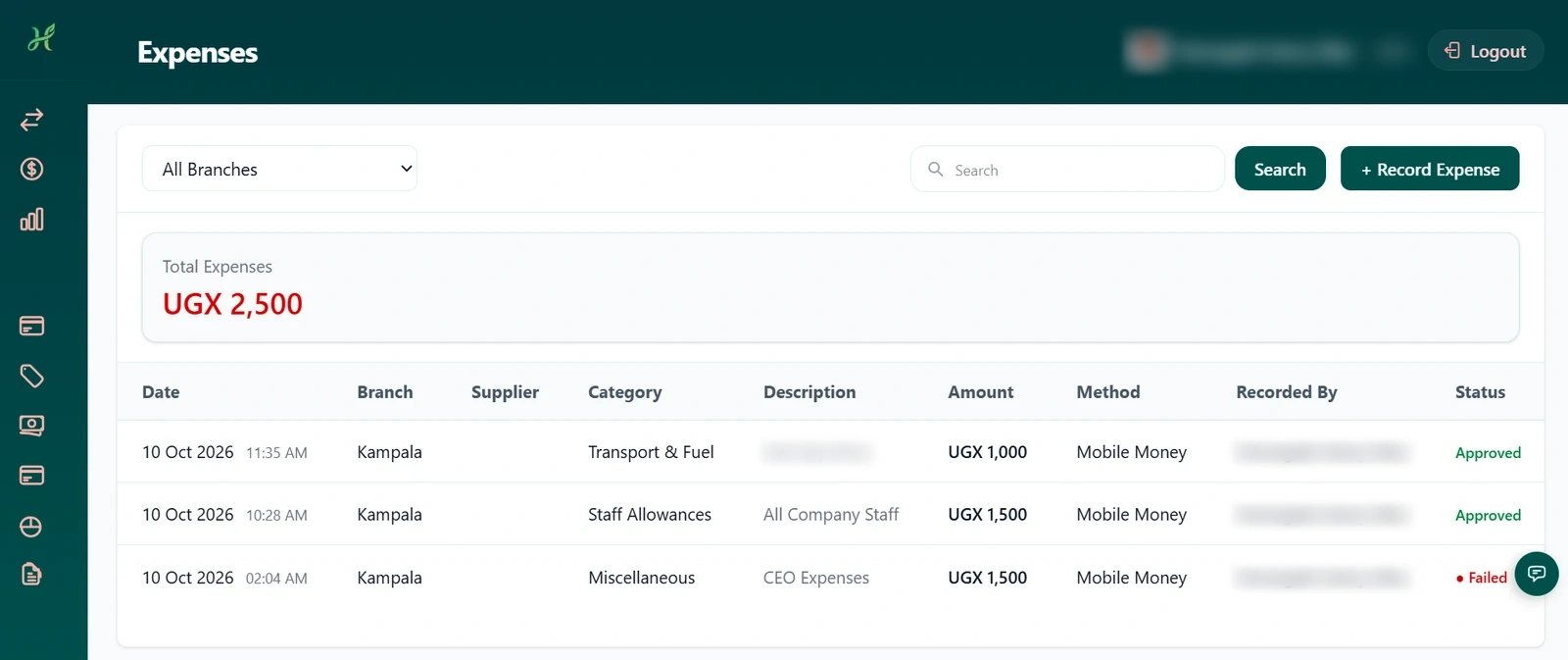
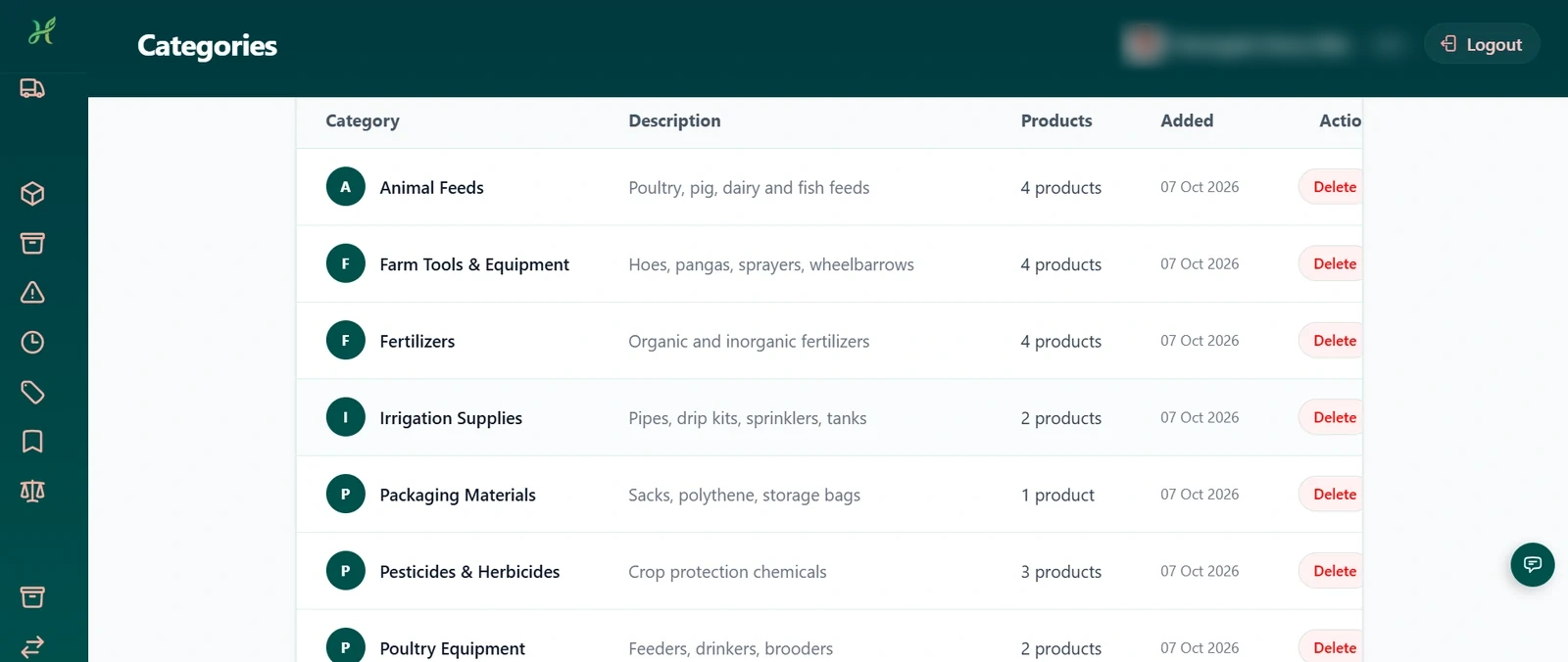
Henora screen 1 Henora screen 2 Henora screen 3
1

Make your first sale

Record what a customer buys and take payment in under a minute.

Menu: Sales > Sales

    Tip

    Add the customers you sell to often under Sales > Customers first, so you can pick them in one tap and keep follow-ups.

    2

    Set up products and stock

    Get your products and quantities in once, then let Henora keep the count.

    Menu: Inventory > Products and Stock

      Tip

      Open a product's stock history to see every stock movement for that product.

      3

      Order from a supplier

      Request, approve, order and receive goods, with every step on record.

      Menu: Purchasing > Suppliers, Purchase Requests, Purchase Orders

        Tip

        Managers are notified when a request is waiting for their decision, so nothing sits unseen.

        4

        Record expenses and income

        Know where money goes and where it comes from.

        Menu: Finance > Expenses and Income

          Tip

          Keeping categories consistent makes your Financial Summary much easier to read.

          5

          Read your reports

          Turn your records into answers: what sold, what is in stock and what the business earned.

          Menu: Sales, Reports and Finance menus

            Tip

            Choose the period first, then download, so the PDF matches what is on your screen.

            6

            Approvals and leave

            Let staff ask, let managers decide, and keep a record of every decision.

            Menu: Approvals and Employees > Leave Requests

              Tip

              Your team is told about every decision, so a quick answer saves a lot of follow-up.

              7

              Staff chat and announcements

              Keep the team talking inside the system, where the work is.

              Menu: Staff Chat and Announcements

                Tip

                Use announcements for things everyone must know, and chat for one-to-one questions.

                8

                Branches, departments and staff

                Set up the business the way it really works.

                Menu: Branches, Staff Members and Business Profile 6 steps
                1. Review your business details under Business Profile.
                2. Open Branches and create each branch. You can switch a branch off without losing its history.
                3. Open a branch's departments and create departments such as Sales or Stores.
                4. Assign staff to departments, and use the organisation chart to see who reports to whom.
                5. Open Staff Members to see your team. Open a person to see their profile, photo and attendance.
                6. Use the Activity Log to see who changed what, and when.
                Tip

                Roles decide what each person can see and do. We set them up with you when we create your business.

                Stuck on something?

                Call us, email us, or send a support request from inside Henora and read our reply there.

                Contact us Browse the FAQs

                Ready to run your business from one system?

                Tell us about your business. We set up your business with you, you sign the agreement, and you use Henora free under the terms you agree with us.

                  Chat with us